App Screenshots

SeamDiff in action

A native macOS diff viewer built for speed and clarity — compare files and folders without the clutter.
Getting started

Start by choosing what to compare

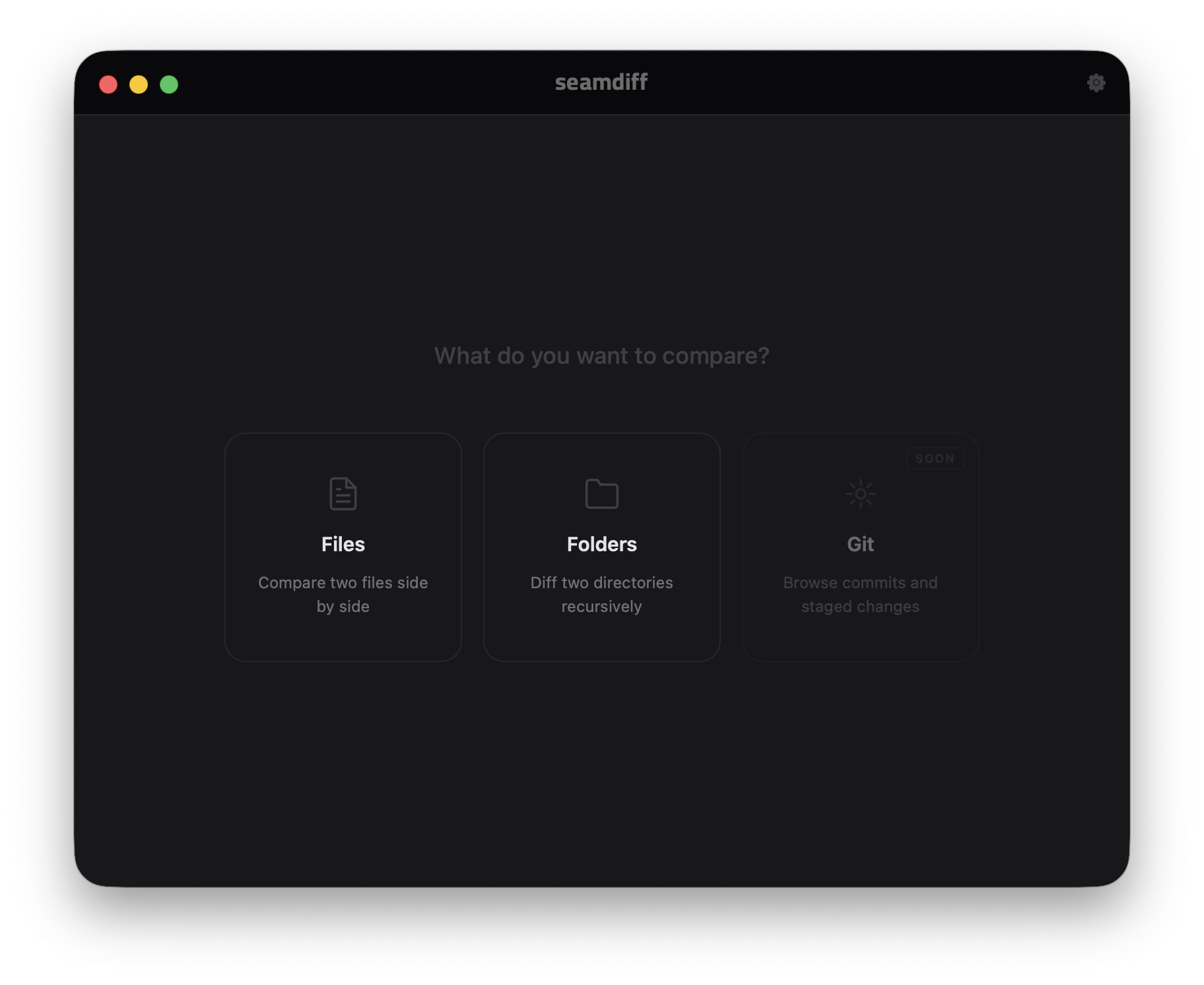
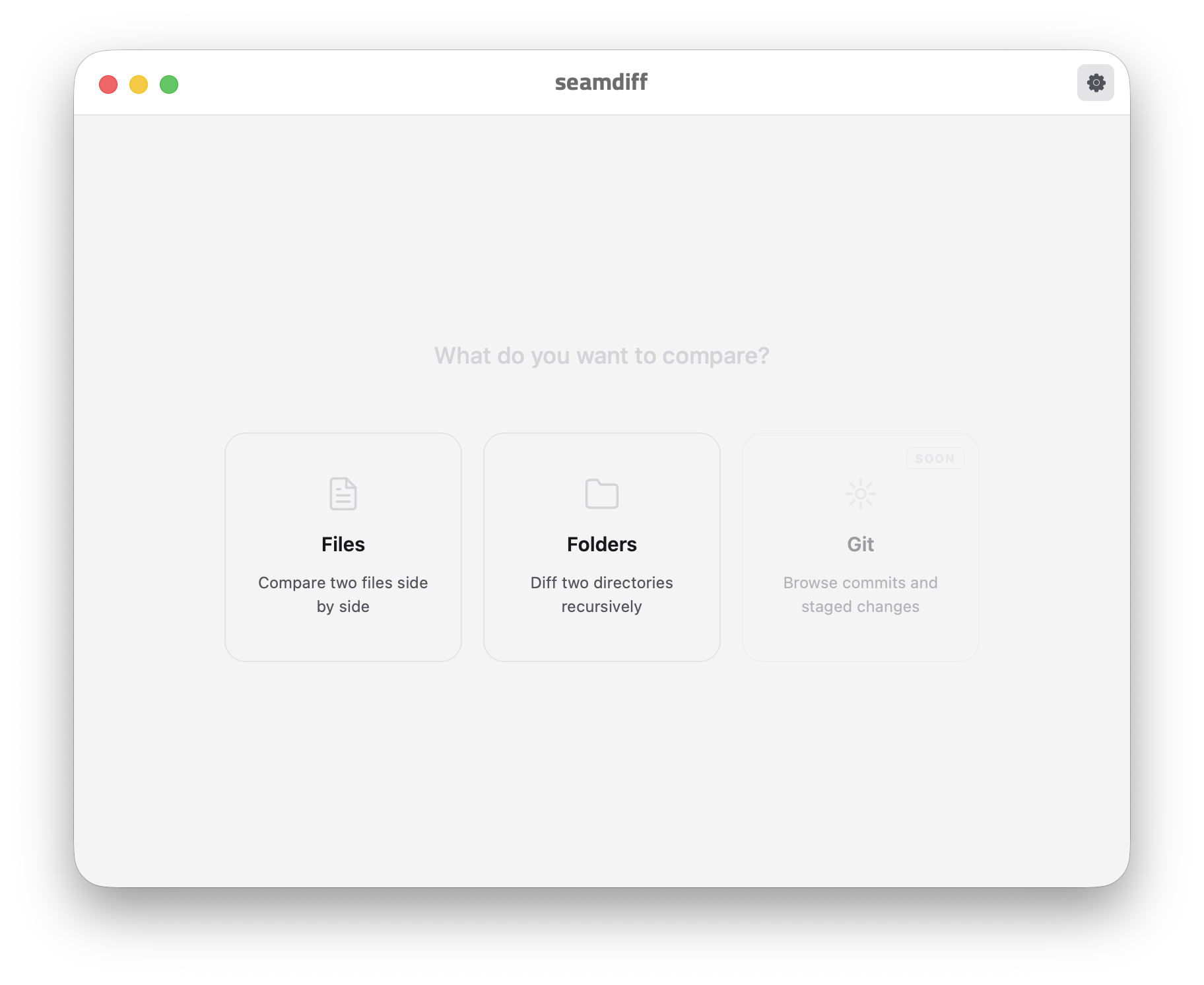
When you open SeamDiff you're greeted with a clean selection screen — pick Files for a quick two-file diff or Folders to compare entire directory trees. No clutter, no setup. Oh, and which one are you — a creature of the dark, or do you prefer the light?

SeamDiff dark theme
SeamDiff light theme

File comparison

Side-by-side diff that's actually readable

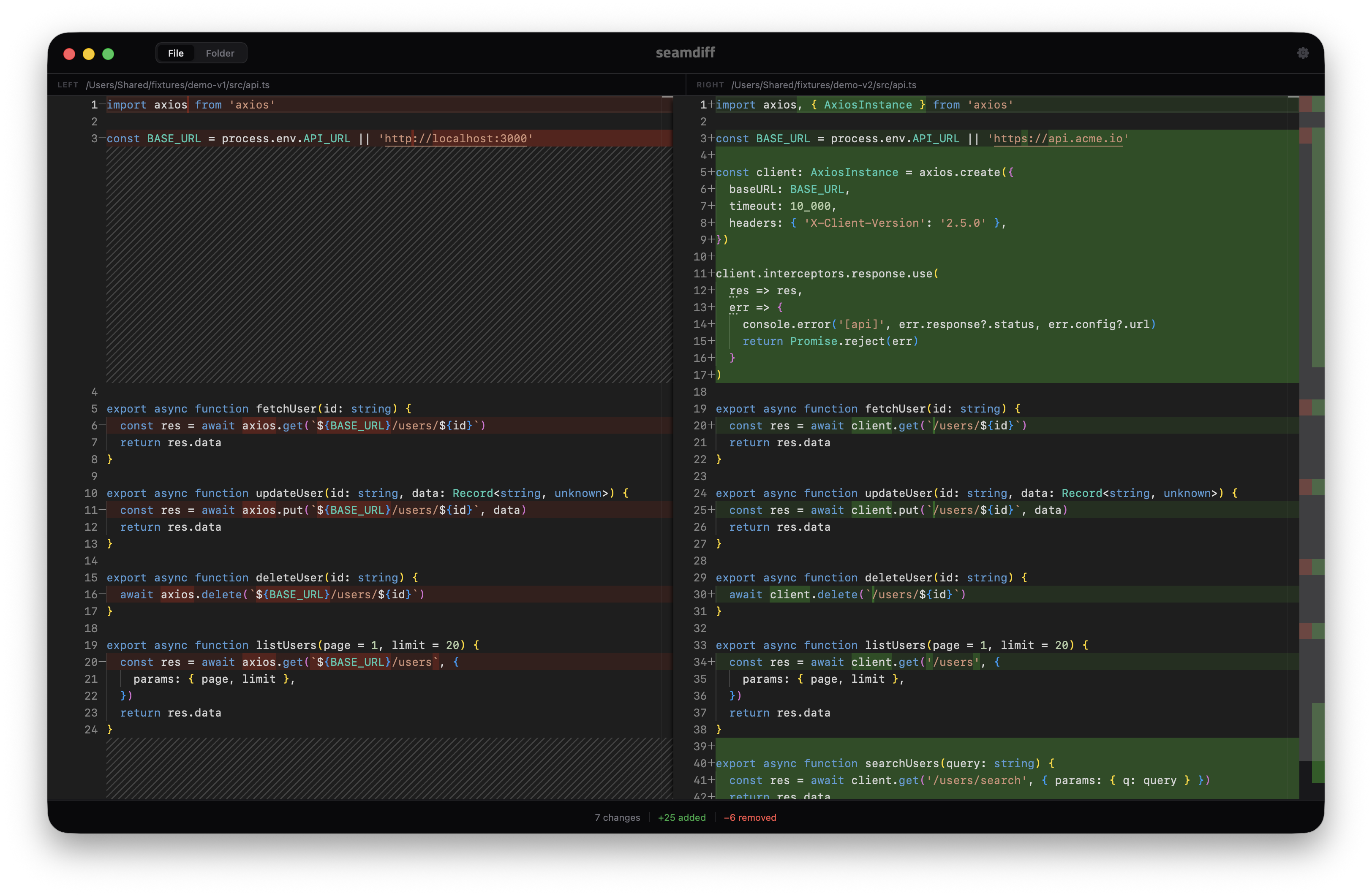
Open any two files and get an instant, colour-coded diff. Changes are highlighted line-by-line with full syntax highlighting for every language Monaco supports — over 60 of them.

SeamDiff file comparison

Tap image to enlarge


Folder comparison

Compare entire folders in one click

Pick two folders and SeamDiff walks every file recursively, showing you exactly what's modified, added, or removed — with colour-coded status badges at a glance.

SeamDiff folder comparison

Tap image to enlarge


Folder → file drill-in

Click any file to see the full diff

One click on any modified file opens the side-by-side diff right inside the folder view. Hit Back to list and pick the next file — no new windows, no fuss.

SeamDiff folder file diff

Tap image to enlarge


Syntax highlighting

60+ languages, zero configuration

SeamDiff auto-detects the language from the file extension and applies full syntax highlighting on both sides. TypeScript, Python, Go, YAML, JSON — it all just works.

SeamDiff syntax highlighting

Tap image to enlarge


Light theme

Works beautifully in light mode too

Follows your macOS appearance automatically, or lock it to dark or light in settings. Every colour, border, and contrast level is tuned for both themes.

SeamDiff light theme

Tap image to enlarge


Settings

Every preference, exactly where you'd expect it

Font size, font family, word wrap, line numbers, minimap, side-by-side or inline diff, whitespace handling, auto-reload — all in one clean panel. No digging through menus.

SeamDiff settings panel

Tap image to enlarge

Drag & Drop

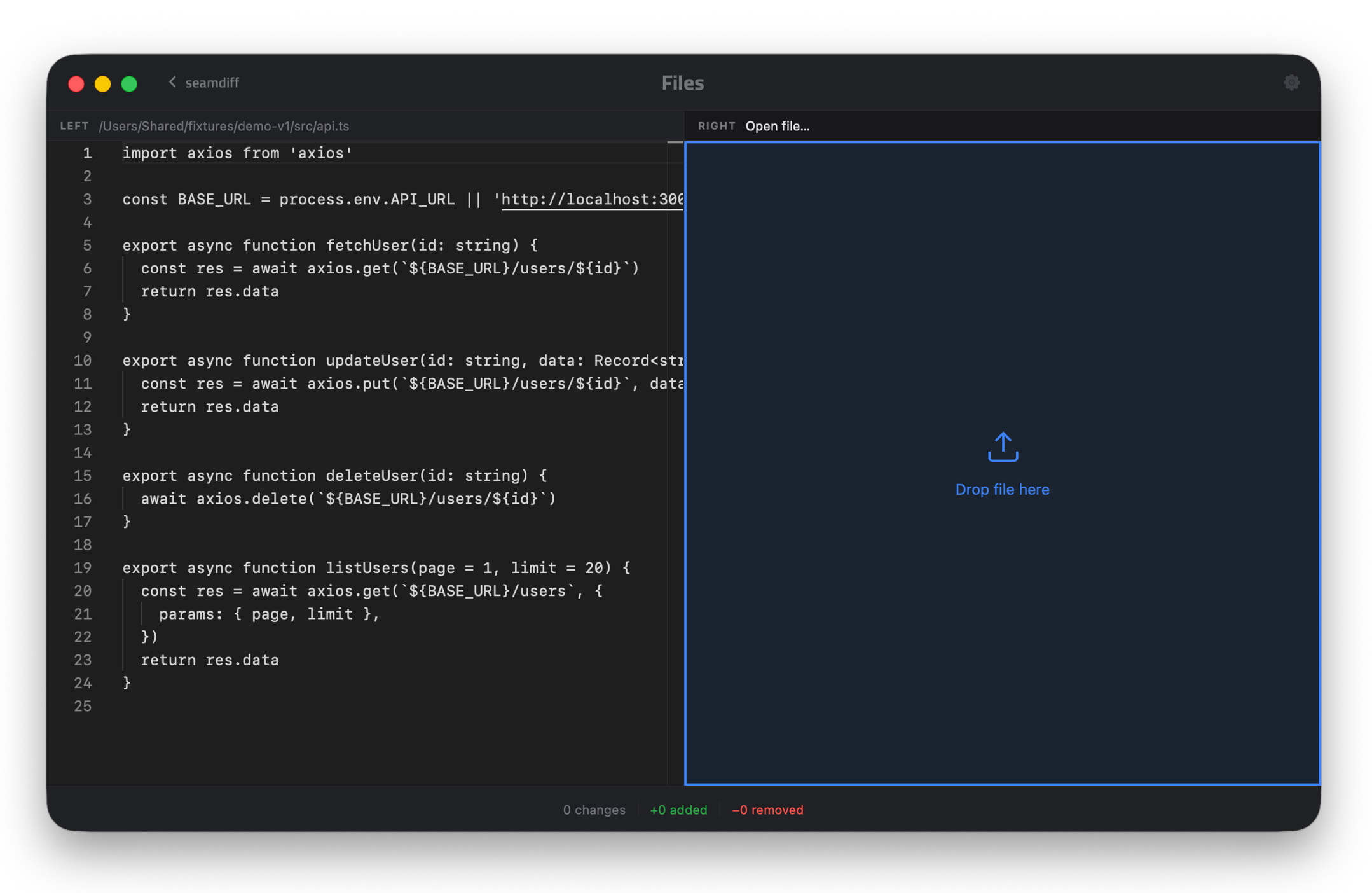
Just drop it in

Drag any file or folder straight onto the left or right panel — SeamDiff detects the type automatically and switches to the right mode. No menus, no dialogs.

SeamDiff drag and drop

Tap image to enlarge


Visual diff gutter — v0.4

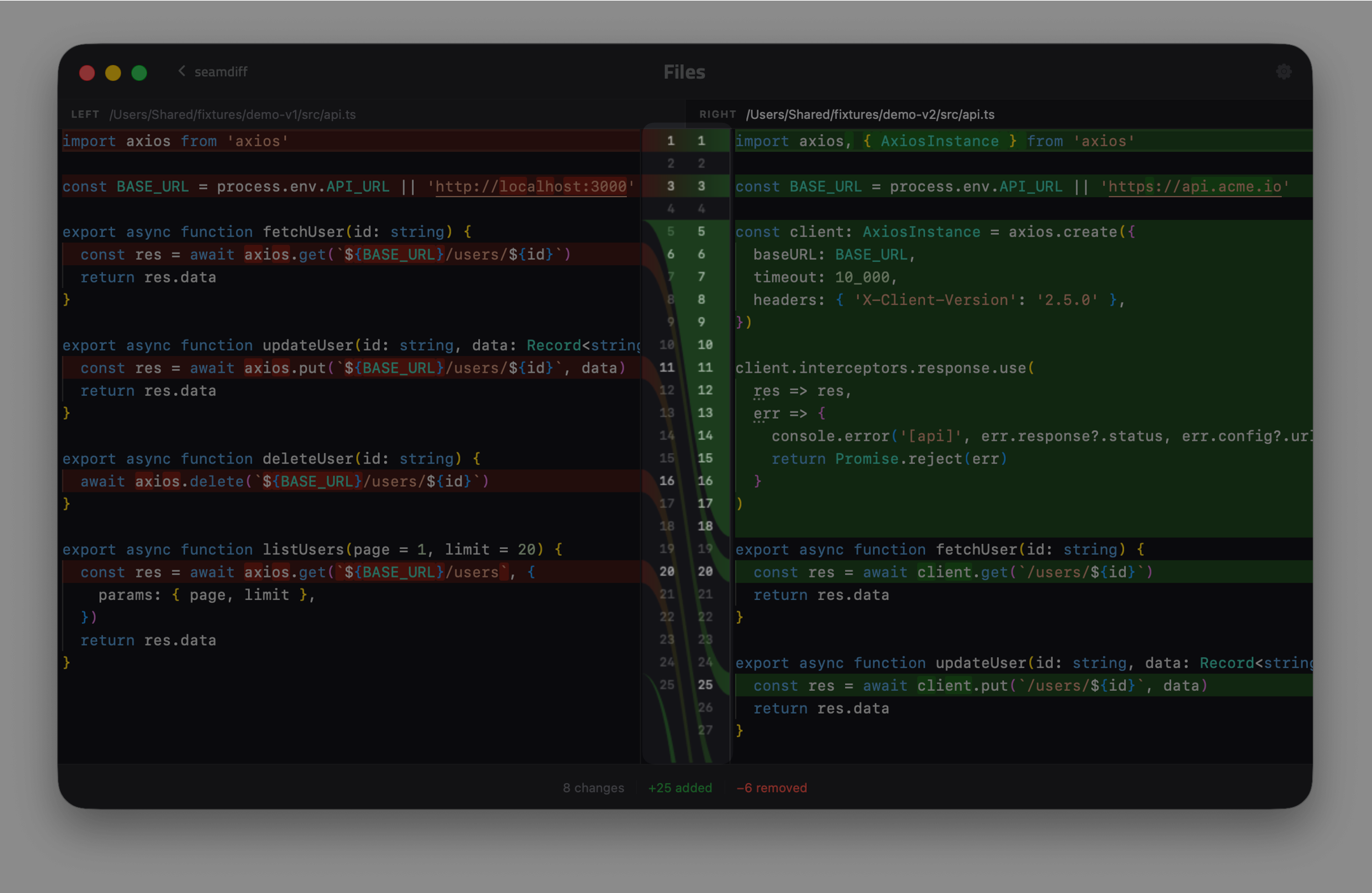
Connector bridges that show the full picture

The custom gutter between the two editors draws smooth bezier bridges connecting each changed block across the files. Added, removed, and modified blocks each get distinct colour gradients — so at a glance you can see not just what changed, but where it came from. Line numbers sit inward-facing in the gutter itself, highlighted on changed lines.

SeamDiff connector gutter

Tap image to enlarge


Merge & save — v0.5

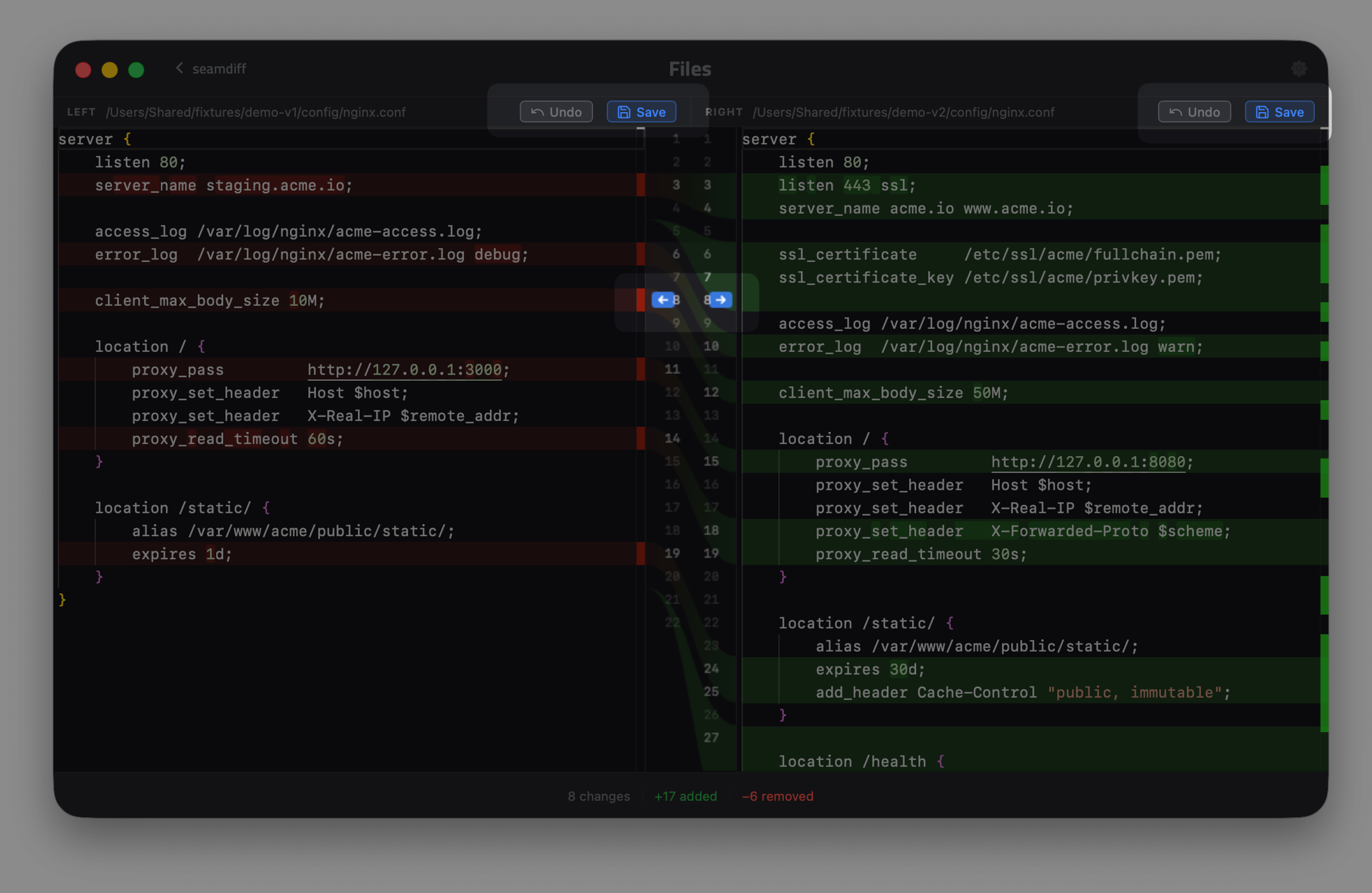
One click to merge any block

Hover over any diff block and two arrows appear in the gutter — ← to copy the right side into the left file, → to do the reverse. Undo it per side if needed, then hit Save in the path bar to write the result straight back to disk. The full review-merge-save loop without ever leaving the app.

SeamDiff merge arrows

Tap image to enlarge


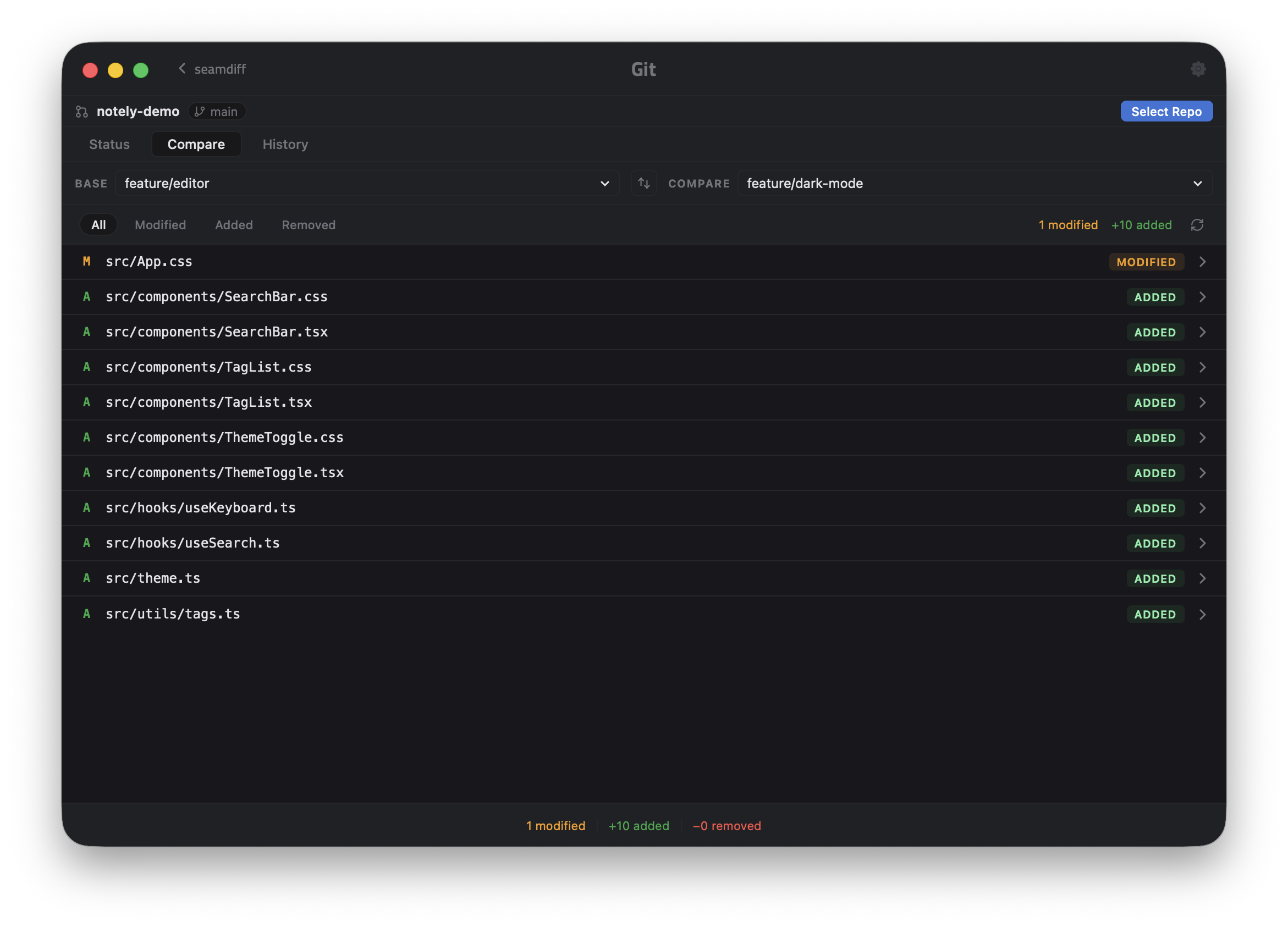
Git integration — v0.6

Compare any two branches in seconds

Open any Git repository and pick two branches, tags, or commits to compare. SeamDiff shows every changed file with added, modified, and removed badges — click any file to drill straight into the full side-by-side diff.

SeamDiff git branch comparison

Tap image to enlarge


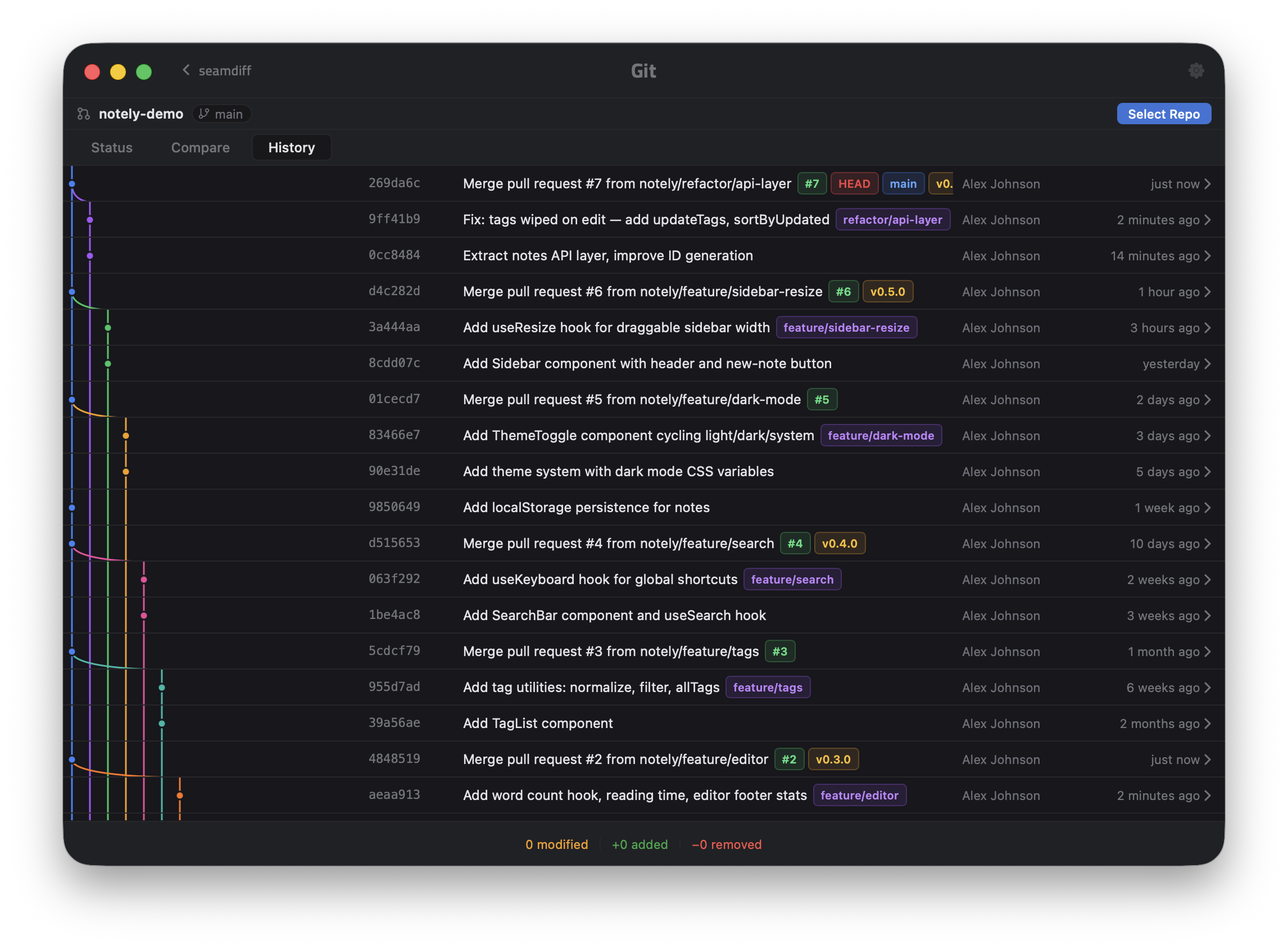
Git history — v0.6

Full commit history with branch graph

The History tab shows every commit across all branches in topological order, with a colour-coded branch graph on the left. Branch, tag, and PR badges sit inline next to the message. Click any commit to see its changed files, then click a file to diff it against its parent.

SeamDiff git history with branch graph

Tap image to enlarge


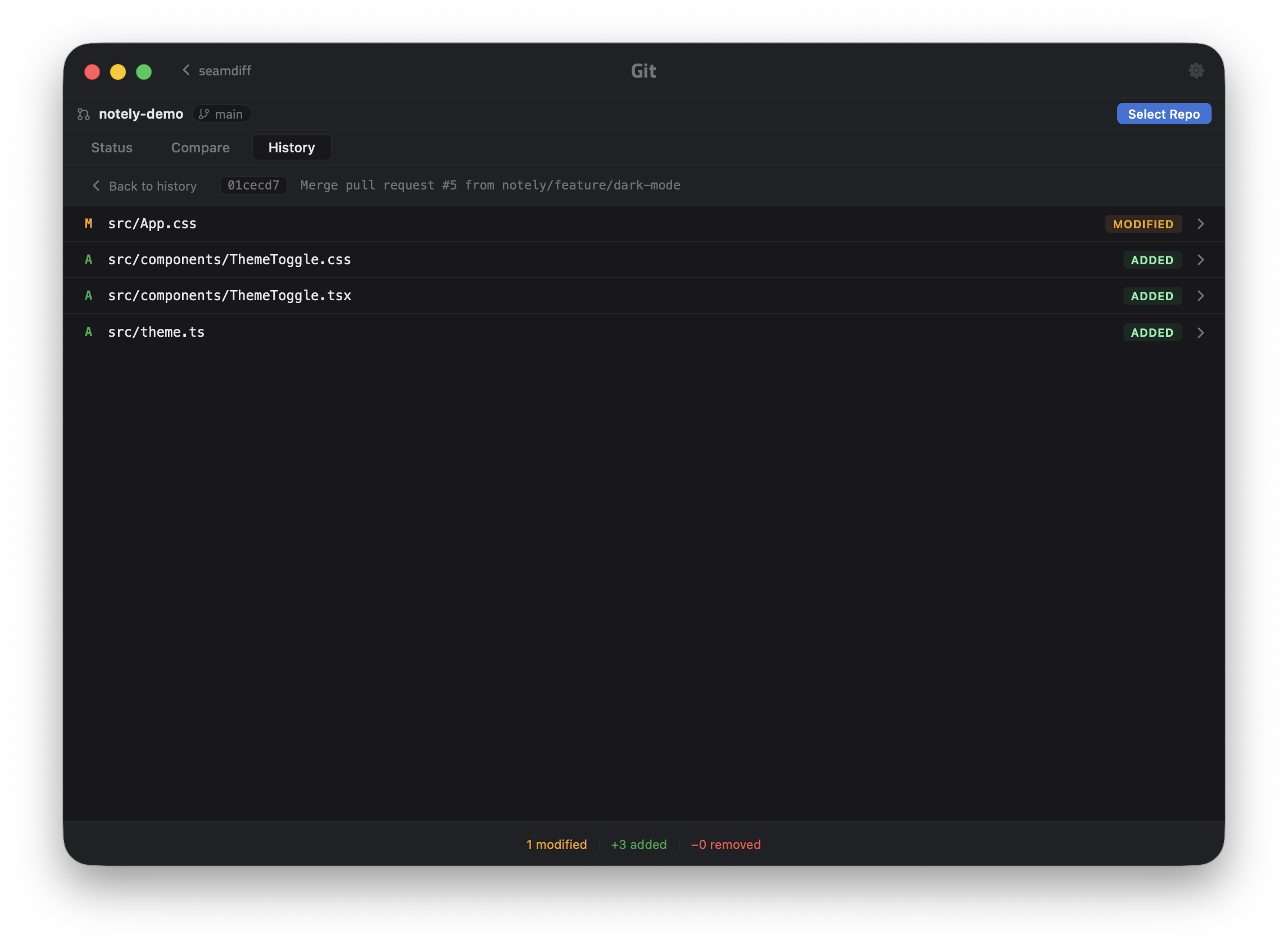
Commit drill-in — v0.6

See exactly what changed in every commit

Click any commit in the history to get a clean list of every file it touched — added, modified, or removed. Click a file to open the full before-and-after diff in Monaco. Hit Back to return to the commit, or Back to history to keep browsing.

SeamDiff commit files drill-in

Tap image to enlarge


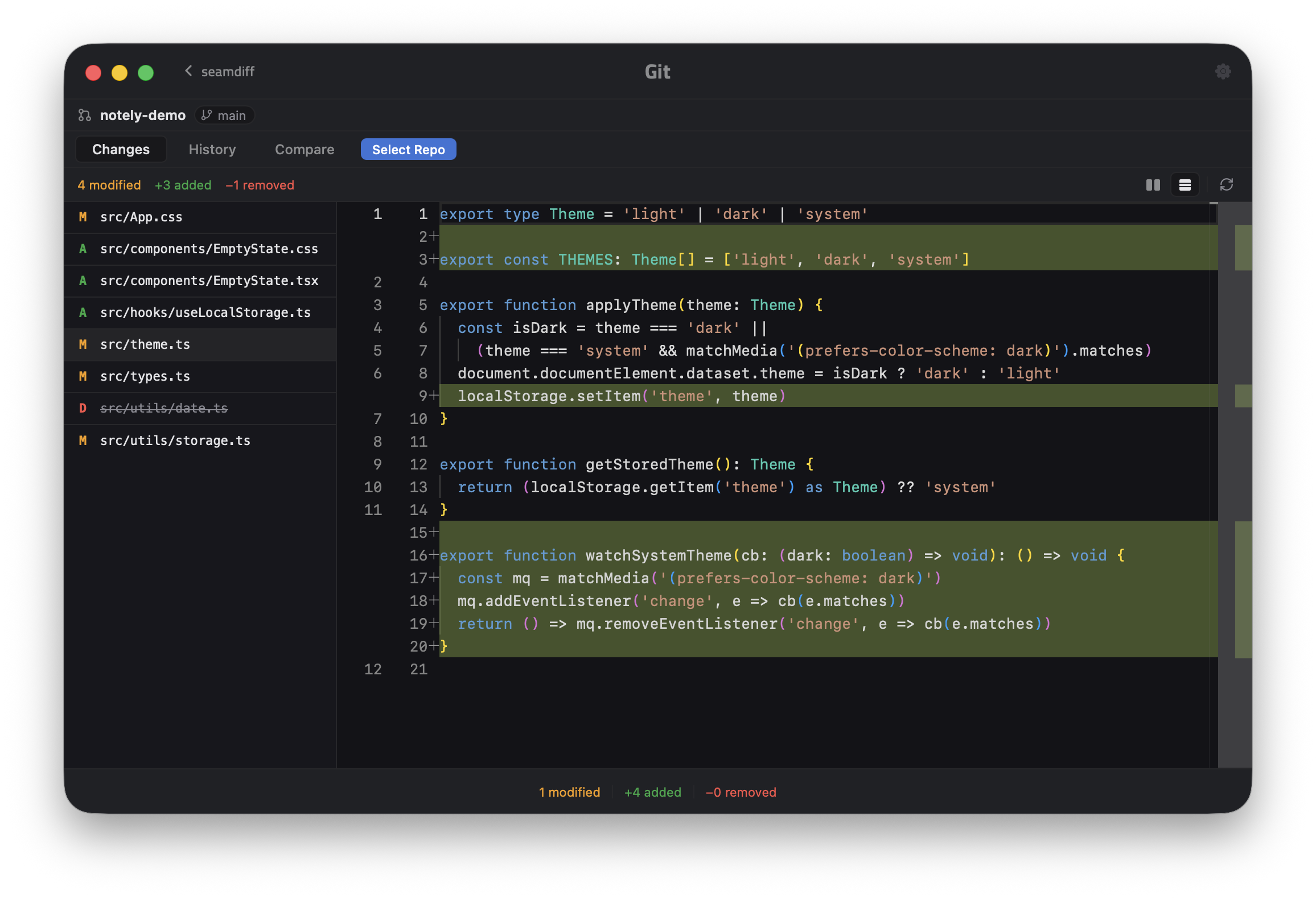
Working tree changes — v0.6

See exactly what's changed in your working tree

The Changes tab shows every file modified, added, or removed since the last commit. The file list sits on the left — click any entry and the full diff opens on the right instantly. Toggle between side-by-side and unified view without leaving the screen.

SeamDiff working tree changes

Tap image to enlarge